

Nothing is installed on your site and Elaris can’t change any Cloudflare setting. It works on every Cloudflare plan, including Free.
Before you start
- Your site’s traffic goes through Cloudflare (the orange cloud is on for your domain’s DNS records). Requests that bypass Cloudflare aren’t in its analytics.
- You are an admin of the Elaris workspace and can approve apps on the Cloudflare account that holds your site.
- Your website is set in Elaris (Settings → General), so the right site is picked for you.
Connect
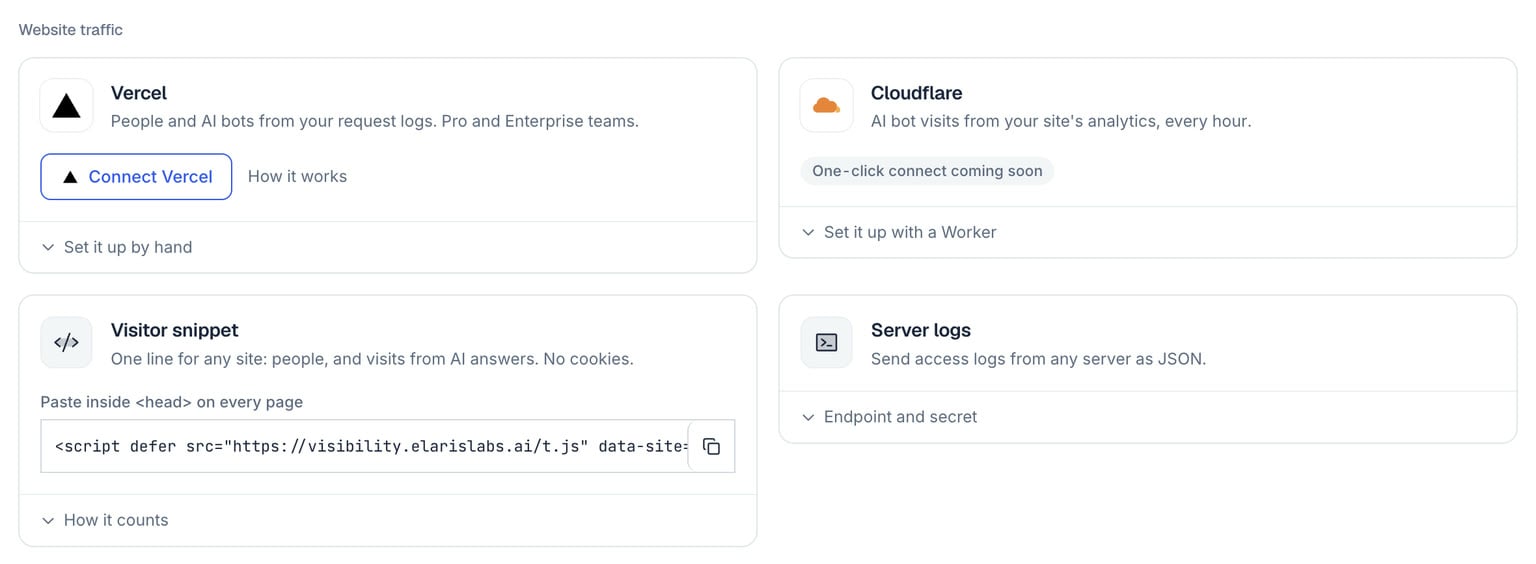
Settings → Integrations: the Website traffic panel, where Connect Cloudflare is.
- In Elaris Visibility, open Settings → Integrations and select Connect Cloudflare.
- Cloudflare opens and shows what Elaris Visibility is asking for: read access to your sites and their analytics. Choose the account that holds your site and approve.
- You come back to Elaris. The site matching your website is picked automatically; if Elaris can’t tell which one it is, choose it from the list of sites on the account.
- Elaris reads the last 24 hours straight away, so AI Traffic fills in within a minute or two. After that, each hour is added shortly after it ends.
What happens behind the scenes
Once an hour, Elaris asks Cloudflare’s analytics for the requests to your site whose user agent belongs to a known AI agent or crawler, counted by hour, host, page, bot, response status and country. Requests from people are never read. The counts are stored in your workspace and shown on the AI Traffic page alongside any other sources you connect. Cloudflare’s analytics are sampled on busy sites, so the counts are Cloudflare’s estimates rather than an exact tally. They also don’t include IP addresses, so bots seen this way show as unchecked rather than verified.What Elaris can access
All access is read-only. The access Cloudflare grants is stored encrypted, renewed automatically, and used only to read AI traffic for your workspace.
Changing or disconnecting
- Another site: select Connect Cloudflare again and choose it.
- Disconnect: in Settings → Integrations, select Disconnect on the Cloudflare panel (click twice to confirm). Elaris gives the access back to Cloudflare straight away. AI traffic already collected stays in Elaris.
- From Cloudflare’s side: revoke Elaris Visibility from your profile’s authorised apps. The panel then asks you to connect again.
Troubleshooting
Need every request exactly, with IP checks? Open Set it up by hand instead on the Cloudflare panel and add the small Worker it shows. Set its route’s request limit failure mode to Fail open so your site keeps working if the Worker’s daily limit is reached.