

Before you start
- Your Vercel team is on Pro or Enterprise. Vercel offers log drains only on those plans; on Hobby, use Cloudflare or send logs by hand.
- You are an admin of the Elaris workspace, and can install integrations on the Vercel team that owns your site.
- Your website is set in Elaris (Settings → General), so the right project is picked for you.
Connect
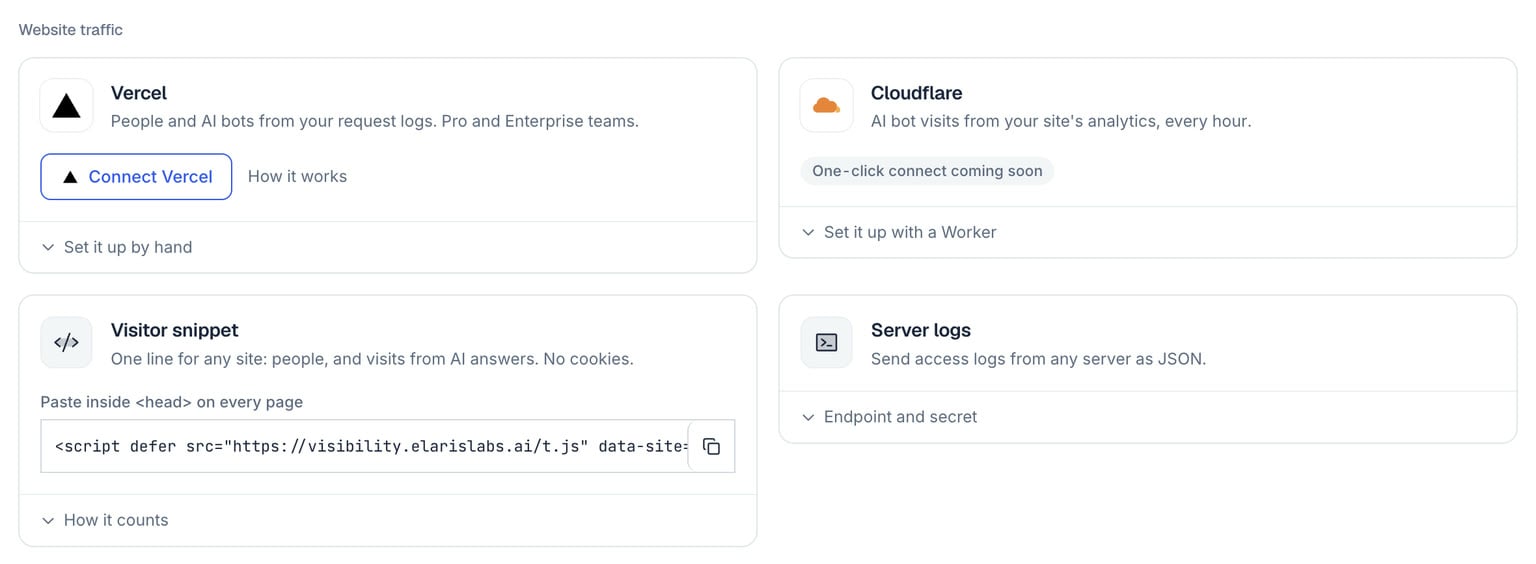
Settings → Integrations: the Website traffic panel, where Connect Vercel is.
- In Elaris Visibility, open Settings → Integrations and select Connect Vercel.
- Vercel opens and asks you to install the Elaris Visibility integration. Choose the team that owns your site. When asked which projects to share, pick your site’s project (or all projects, if you prefer to choose in Elaris).
- You come back to Elaris. If one project serves your website’s domain, the drain is created for it straight away. If several could, tick the ones that make up your site (for example the main site and a shop on a subdomain) and select Connect.
- The Vercel panel now shows Connected to your team and the projects included. AI traffic appears on the AI Traffic page within a few minutes of the next visit from an AI bot.
What happens behind the scenes
Elaris creates one log drain on your team named “Elaris Visibility: AI traffic”, covering only the projects you chose. Vercel then sends each request log to your workspace’s own endpoint, signed with a secret unique to your workspace, so nobody else can send data in your name. Elaris keeps the requests from AI agents and crawlers, checks them against the IP addresses their vendors publish, and discards the rest straight away. Nothing changes on your site: no code, no redirects, no added latency. You can see the drain in Vercel under your team’s settings, in Drains.What Elaris can access
Elaris can’t deploy, change environment variables, edit domains or read your code. The access token Vercel issues is stored encrypted and is used only to manage the drain.
Changing or disconnecting
- Add or change projects: select Connect Vercel again and pick the projects. The new drain replaces the old one, so logs aren’t counted twice.
- Disconnect: in Settings → Integrations, select Disconnect on the Vercel panel (click twice to confirm). Elaris removes the drain and the integration from your team. AI traffic already collected stays in Elaris.
- From Vercel’s side: removing the integration under your team’s Integrations removes its drain too.
Troubleshooting
Prefer to set it up yourself? Open Set it up by hand instead on the Vercel panel: it shows the endpoint and secret to paste into a drain you create in Vercel.