

Elaris can’t change anything in Search Console or Analytics, and nothing is added to your site. Search Console and Analytics are included on Every plan.
What it adds
The numbers appear in the Library next to AI traffic and citation rate, for each folder and page, over the last 7, 30 or 90 days. Put together, they show whether the pages AI assistants read and cite also bring people to your site.
Before you start
- You are an admin of the Elaris workspace.
- You can sign in with a Google account that has access to your site in Search Console (as a verified owner or user) and to its Google Analytics 4 property (Viewer or above). One account covers both.
- Your website is set in Elaris (Settings → General), so the right site and property are picked for you.
- Your pages are in the Library (import your sitemap there). Numbers are matched to Library pages, so pages that aren’t in it aren’t counted.
Connect
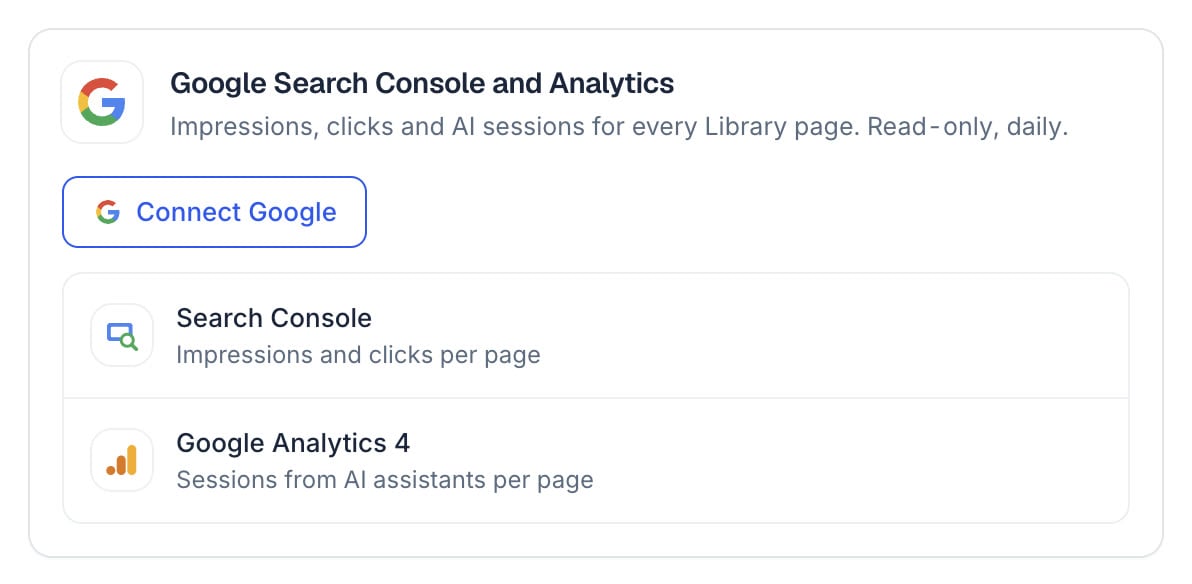
Settings → Integrations: the Google Search Console and Analytics panel.
- In Elaris Visibility, open Settings → Integrations and select Connect Google on the Google Search Console and Analytics panel.
- Google opens and shows what Elaris Visibility is asking for: to see your email address, your Search Console data and your Google Analytics data. Choose the account with access to your site, tick both boxes and continue.
- You come back to Elaris. The Search Console site and the Analytics property that match your website are picked automatically. If Elaris can’t tell which ones are yours, choose them from the lists on the panel.
- Elaris reads the last 28 days straight away; the Library fills in within a few minutes.
How often it syncs
Once a day, Elaris reads the days it hasn’t read yet. Search Console and Analytics keep adjusting their numbers for a few days, so Elaris reads up to three days ago: the newest days arrive once they have settled. Admins can select Sync now on the panel to read any new days straight away.How the numbers are matched
- Pages: Google’s page addresses are matched to Library pages by URL. http and https, and addresses with or without www, count as the same page; tracking parameters such as utm_source are ignored.
- Sessions from AI: a session counts as from AI when Analytics reports its source as an AI assistant’s site, such as chatgpt.com, perplexity.ai, gemini.google.com, copilot.microsoft.com or claude.ai. Analytics only sees visits that come with a referrer or a tagged link, so some AI visits show as direct traffic there and aren’t counted.
- Branded clicks: a search names your brand when it contains your brand’s name or one of its aliases, including Arabic spellings (Settings → Market). Searches Google keeps private for privacy count as not naming it.
What Elaris can access
All access is read-only. The access Google grants is stored encrypted, renewed automatically, and used only to read Search Console and Analytics for your workspace. Elaris keeps daily totals per page, never anything about individual visitors.
Changing or disconnecting
- Another site or property: choose it from the list on the panel. Elaris removes the old numbers and reads the last 28 days of the new one.
- Not in the list? Select Connect Google again on the panel with an account that can see it; the lists refresh.
- Disconnect: in Settings → Integrations, select Disconnect on the Google panel (click twice to confirm). Elaris gives the access back to Google and removes the Search Console and Analytics numbers from your workspace.
- From Google’s side: remove Elaris Visibility from your Google Account’s third-party connections. The panel then asks you to reconnect.